Marketplace - Help guide
How to set up your marketplace
Create an account
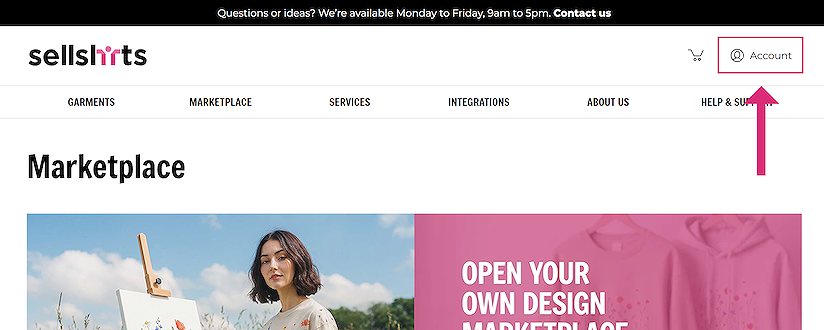
On the marketplace page click Get started in the top banner, or click Account on any page.
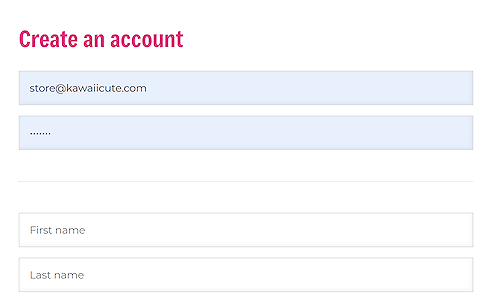
Add your email address - this needs to be the email address you use for your brand. Then create a password for your marketplace account. Make sure you use a valid email address, as we will send you an email to confirm your account. Then fill out a few details about you, don’t worry they will not be public and you can update them at any time. Click on the ‘Create account’ button at the bottom, and we will send you a confirmation email.
Go to your email account, you should have an email from us asking you to verify your email address. Click on the link in the email to verify your email address. You will return to the site where you are now ready to log in.
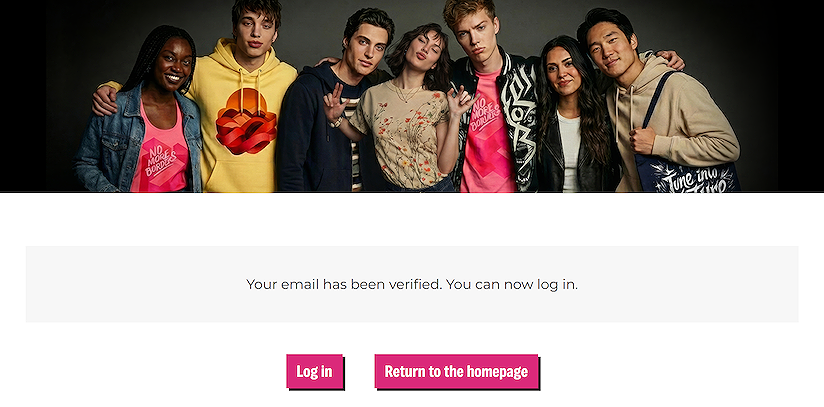
Click on ‘Log in’ to access your new account, you are ready to start adding your designs.
Adding your designs
Now your marketplace account has been set up you can start creating your designs.
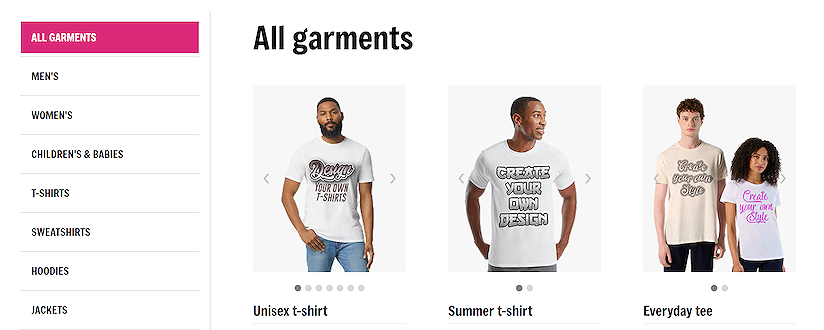
From the garments dropdown or on the Garments page. Select the garment which you would like to design on.
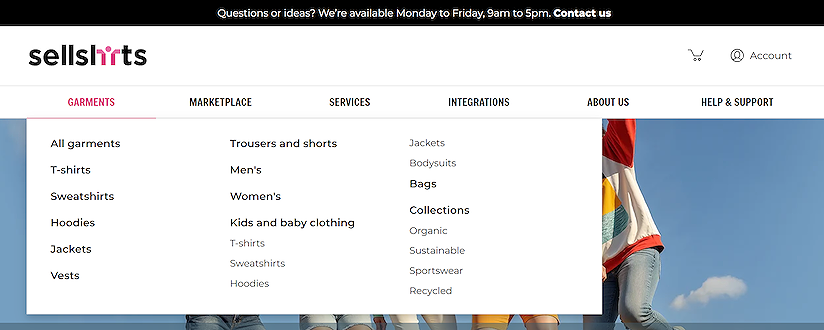
Once you find the garment you want, click on the garment to load our designer.
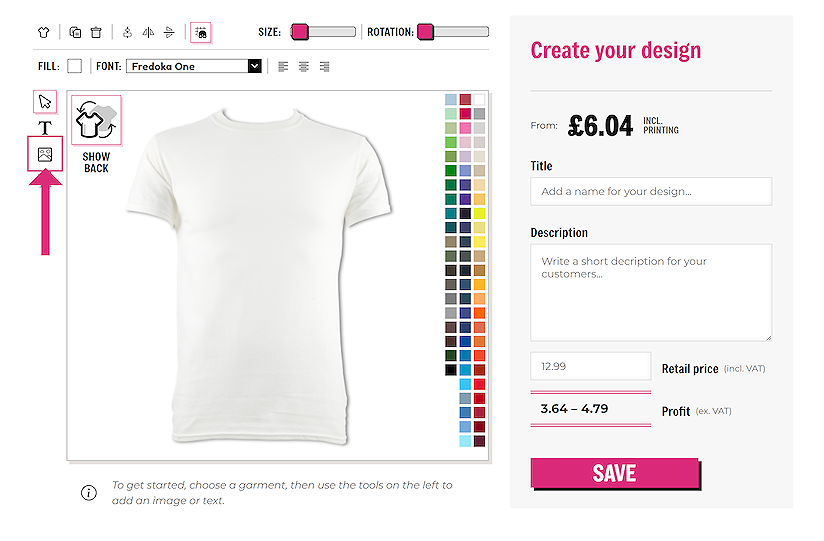
To add an image, click on the image symbol at the left-hand side of the designer. Then select the image from your computer which you would like to upload.
You can adjust the image size on the t-shirt by using the handles around the image. Notice the CM size at the top of the image, which shows the size of the print.
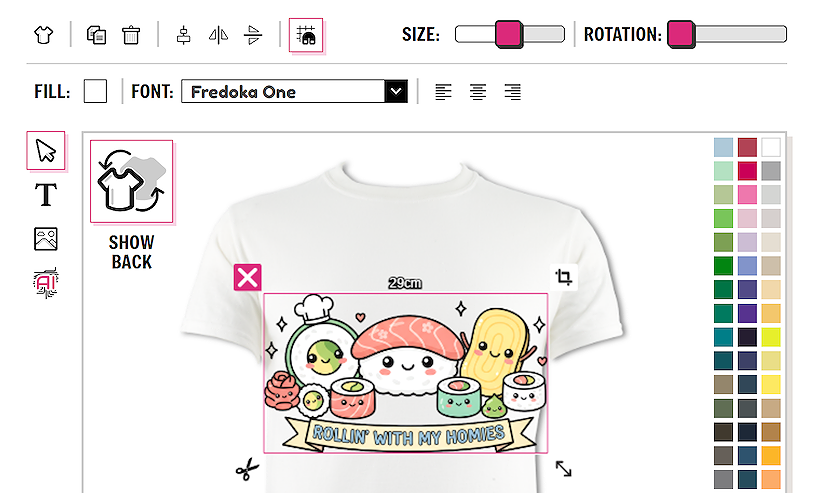
If you need to crop your image, click on the image to reveal to tools. Click on the crop tool on the top right of the image.
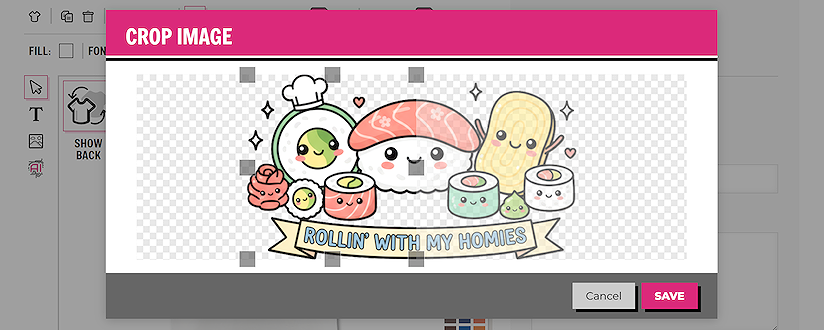
Use the handles around the image to define the crop of the image. Click ‘SAVE’ to add it back to your garment.
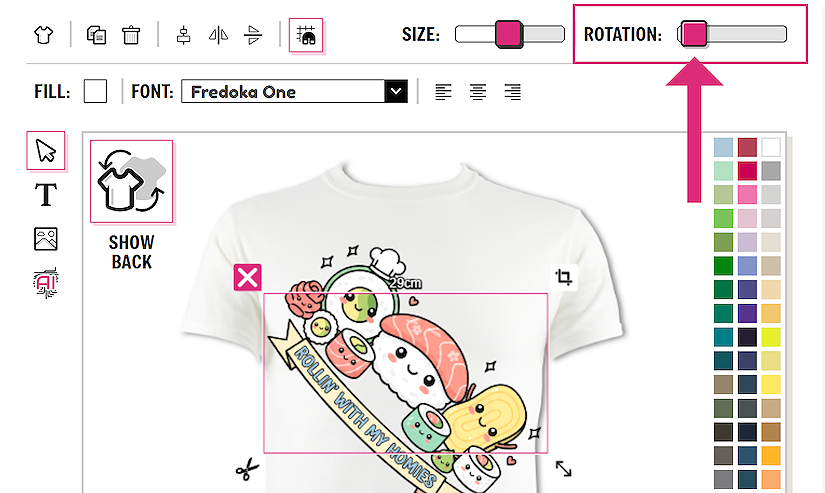
You can rotate your images by, clicking on the image which you would like to rotate, then use the ‘Rotation’ slider at the top of the designer. You can use both the size and rotation sliders on any element in your design.
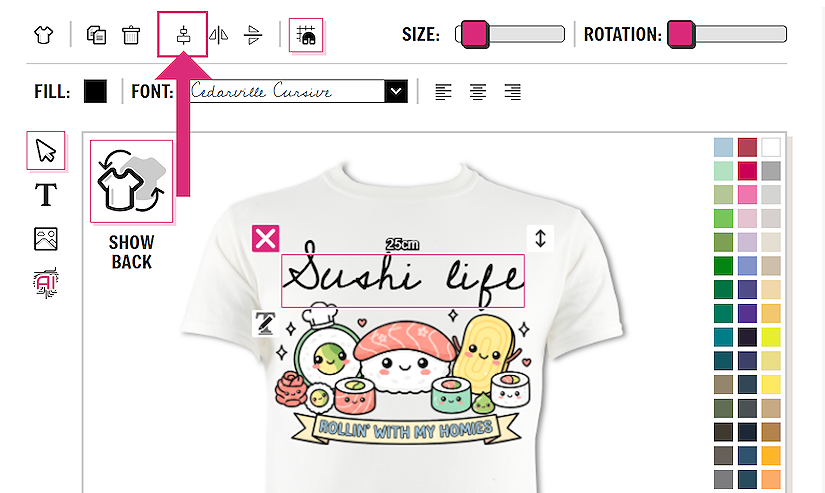
Images can be aligned on the garment. This is useful for centering items inline when you have multiple elements on the garment. Click on each element on the design and then click on the align to center button on the top of the designer. This allows all items to be aligned to the center and make the whole layout of the design look neater.
Adding text
You can add text to your designs using our designer. This is a great way to customise your artwork to create unique designs for your customers. Using our text tool you will get smooth, crisp text in your designs and we have plenty of options to match the style of your design.
To add text click on the text button or T at the left-hand side of the designer.
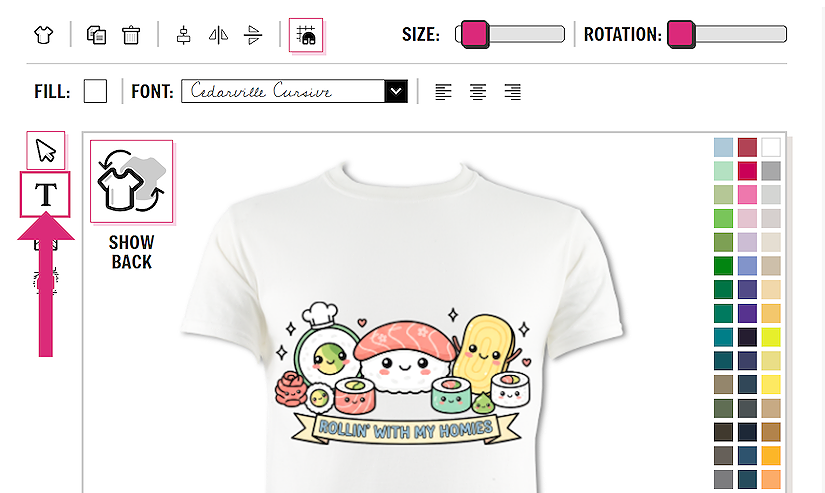
A new text element will be added to your garment. Click on the text to see the text options.
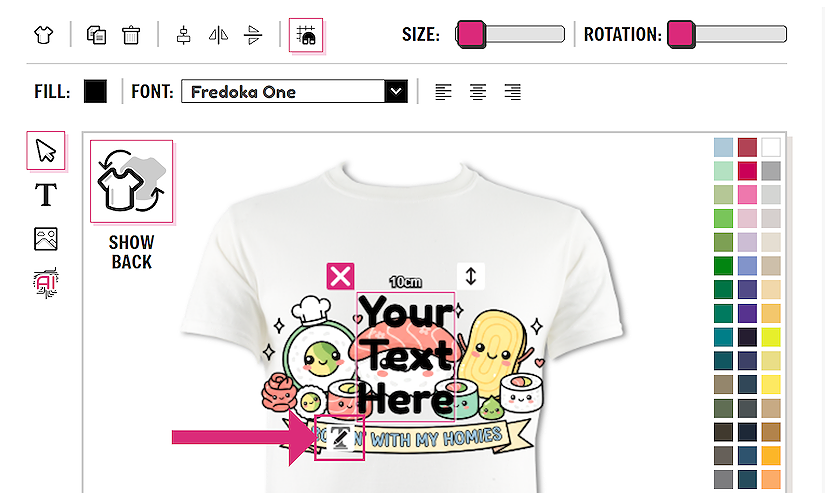
Add the text that you would like to the text box. Click ‘OK’ to add it to your garment.
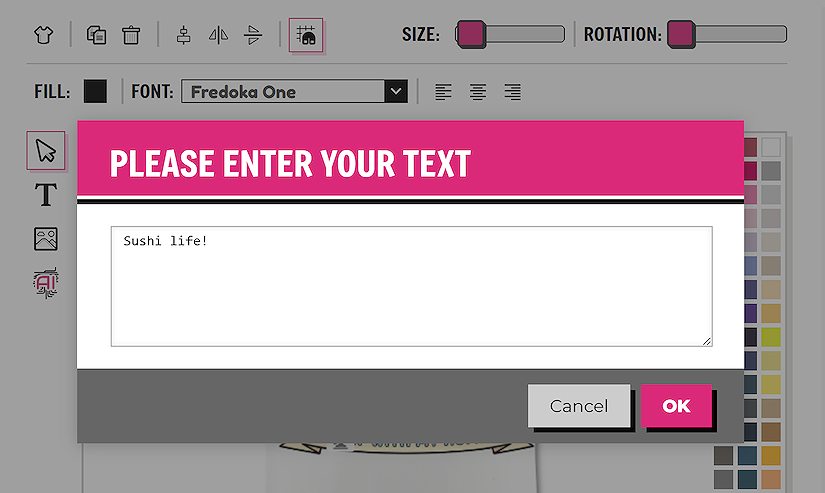
If you have lots of text, think about adding them as separate text elements, then you will be able to style each element separately and therefore have more control of the styling of the text.
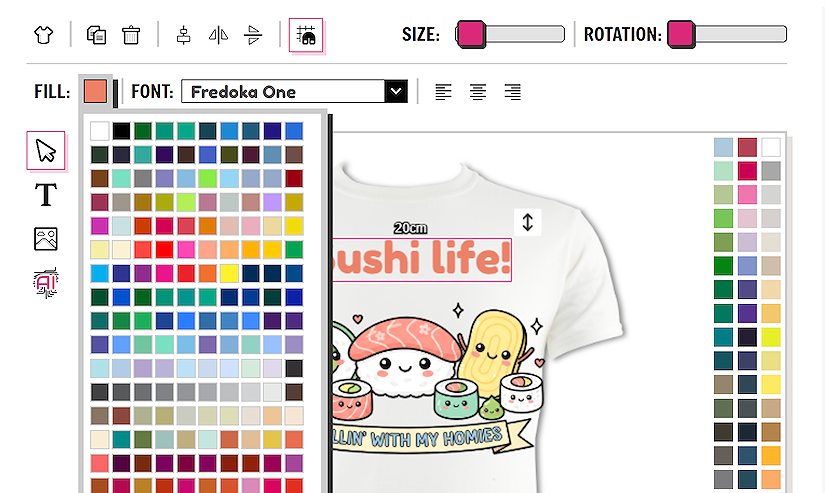
To change the colour of your text, click on the text to select it, then click on the ‘FILL’ button, then you can select a colour for your text.
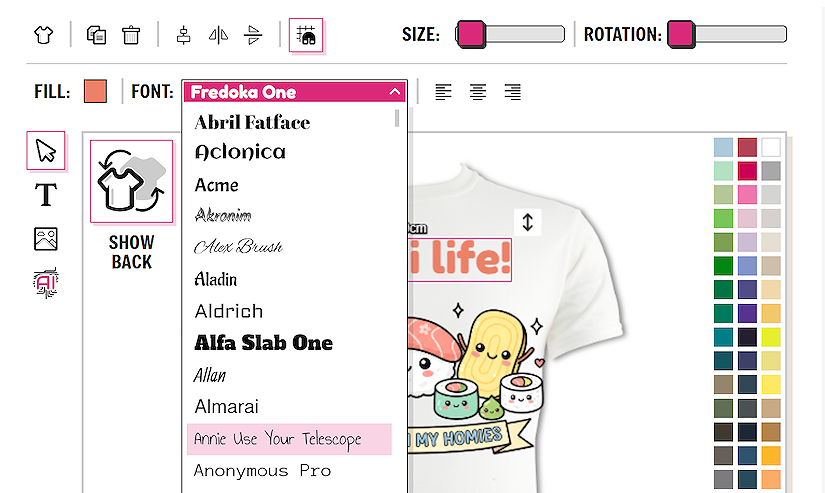
The font of your text can be easily changed by clicking on your text to select it. Then click on the ‘FONT’ dropdown. You will find a list of many fonts to fit with your theme.
Creating your product
Once you are happy with your design and you are ready to save it to your account, you will need to think about the price which you want to sell it for.
The price displayed at the top of the product is the price that the garment is for you, you are free to list the garment for any price additional to this and the profit is calculated once you enter your resale price.
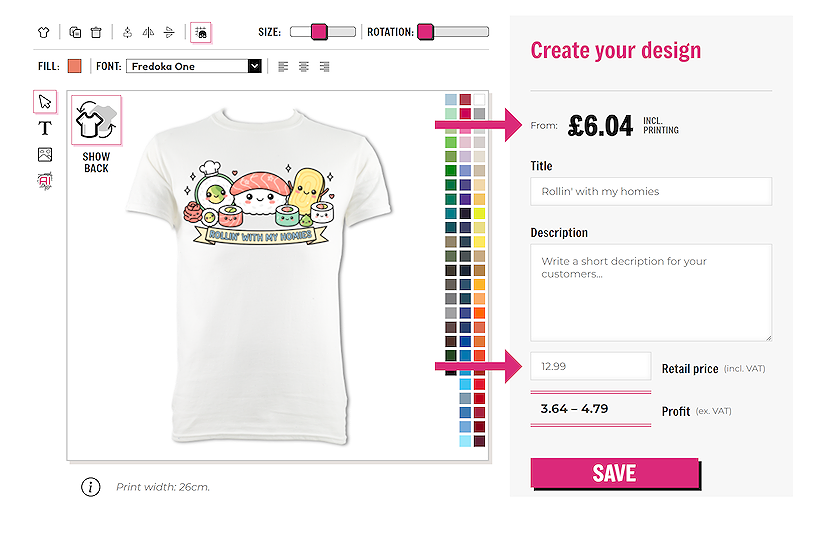
In this example, each time you sold one of these t-shirts at £12.99, you would make a profit of between £3.64 and £4.79. The variance in profit is due to the size of garment the customer purchases, with the raw materials of the largest garments being more. Once the sale has been made this balance would be then available for you instantly in your account area for you to withdraw when you wish to.
Now that you have set the retail price of your design, you will need to add some product details. These details are optional, however these are the details that your customers will see, so it is better to be clear and detailed, so your customers understand what they are buying.
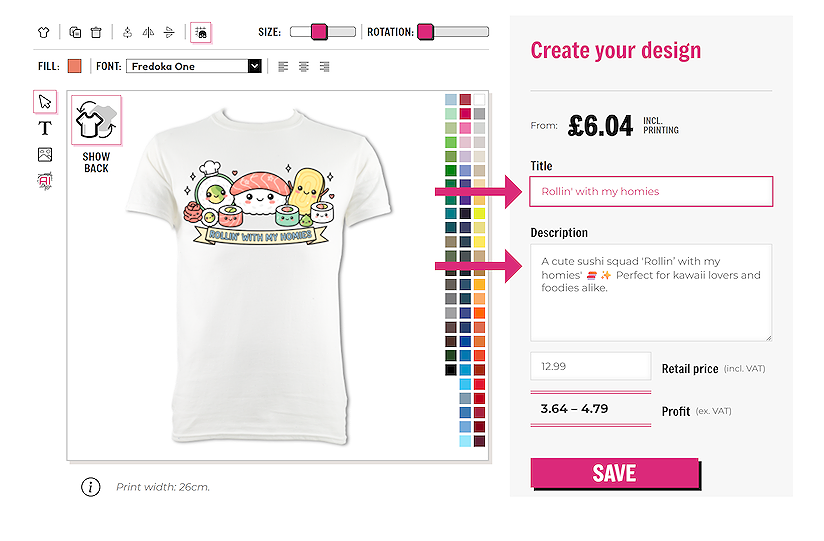
The product title will appear in the marketplace listing, along with a preview of the design. The description of your item will appear on the listing page of your item. Both should be clear and concise to help your customers click on the ADD TO BASKET button.
Once you are happy with your design, your resale price and your descriptions click the ‘SAVE’ button to add this design to your account. Don’t worry if it is not perfect, once saved, you will be able to edit your designs from your account area.
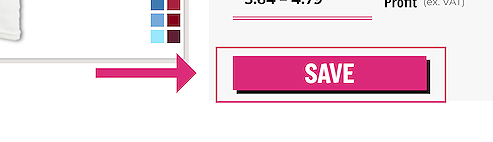
Now your design has been created you can view it in the account area. Click on Account at the top of any page, Then select Designs in the left-hand menu.
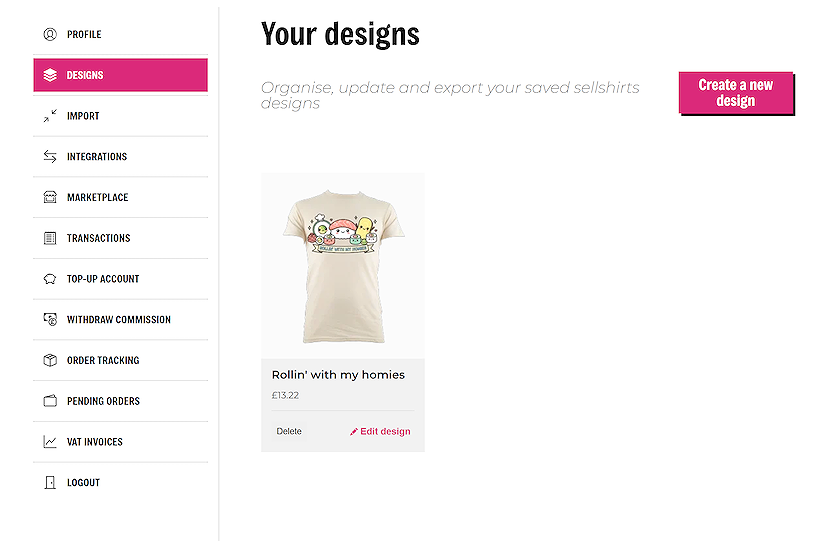
On this page you can view your designs, edit or delete them. This page stores all the designs created on your account, whether they are for the marketplace, an integration or for you to buy internally as a re-seller.
Creating your marketplace
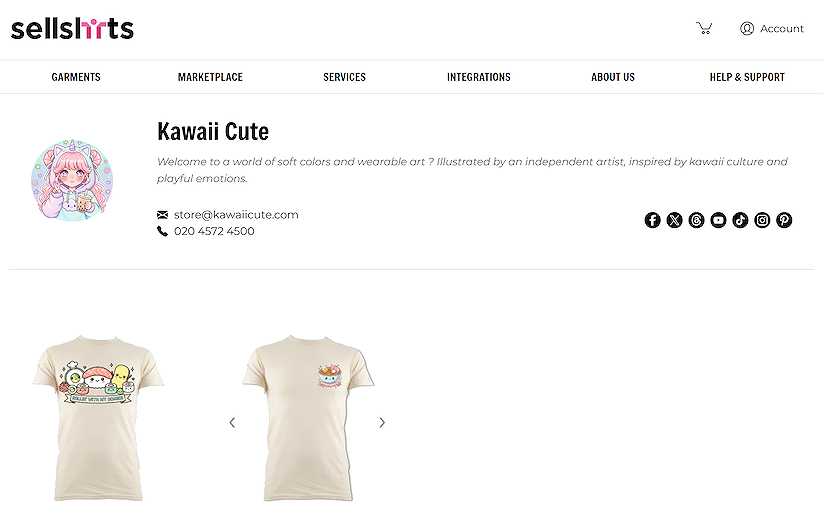
To add your saved designs to the marketplace you will first need to create your marketplace page. This page is your own personal page on the marketplace which links to all the designs you select. You can use this page as a homepage for your items for sale.
Click on Account at the top of any page, Then select Marketplace in the left-hand menu.
By default, when your marketplace is created it is set to inactive. This allows you time to work on your homepage descriptions and organise your products before the store is live. You can preview your store at any time during the setup by clicking on the ‘View my marketplace’ button in the account area.

Customising your marketplace
You can edit the URL of your store front on the marketplace settings page. Here you can add a more user-friendly link to your products. The URL must be unique to the site, it can be changed at any point but if you have already published this link elsewhere it will no longer link to your storefront.

For this example the full link would be : https://sellshirts.com/marketplace/kawaiicute
Fill in the details of your store to make your storefront look more complete, we recommend that you add a short description and you can also add your social media links. These links will appear as icons on your store front.
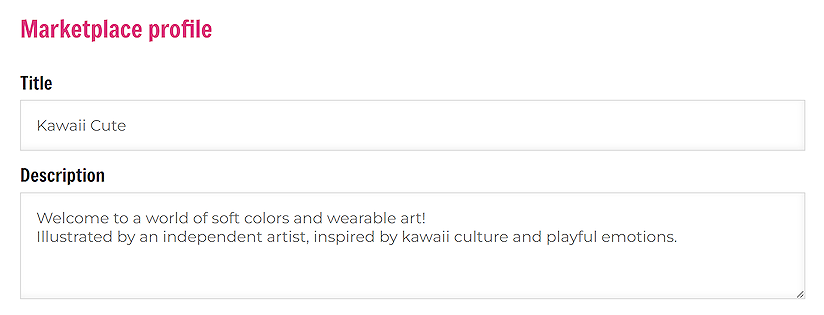
An important thing to add to your profile is your logo. This will appear as an icon on the list of artists, so it can help you stand out from the crowd. If a logo is not added to your profile your items will appear in the searches, but your store will not appear on the artists page, it is up to you how you use this option.
On the marketplace page, click on ‘upload’ logo to add your image.

After customising your marketplace profile, don’t forget to click ‘Save marketplace’ at the bottom of the page.

Adding designs to your marketplace
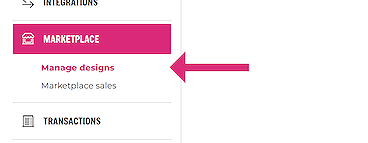
After customising your profile, and activating your account, you will now want to add the designs which you have previously saved to your account. To define these designs, navigate to the sub-page Manage designs in the left-hand navigation.
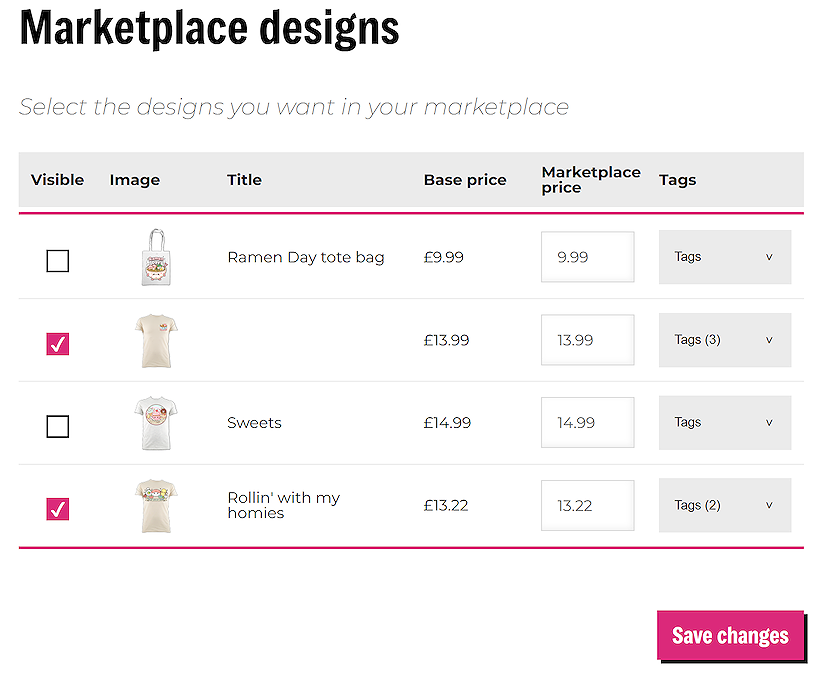
Select the designs which you would like to add to the marketplace by ticking the ‘visible’ box. Double check that you are happy with the retail price, this was set by you when you saved the design, however it can be changed to whatever you like.
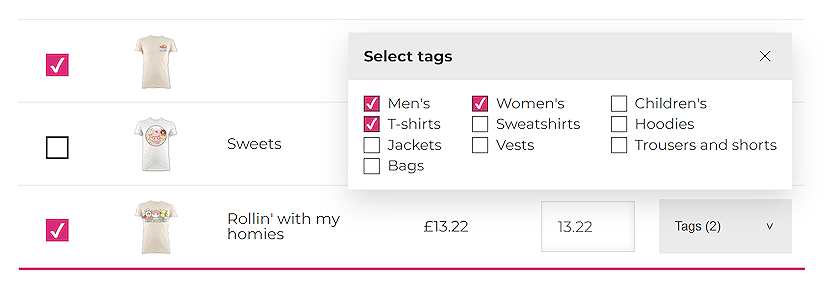
To give your design more visibility on the marketplace, it is important to add tags to each design. These tags will help your items appear in the correct categories so your customers will be able to find them easier. Click on the ‘Tags’ button and select the tags which best fit your design.
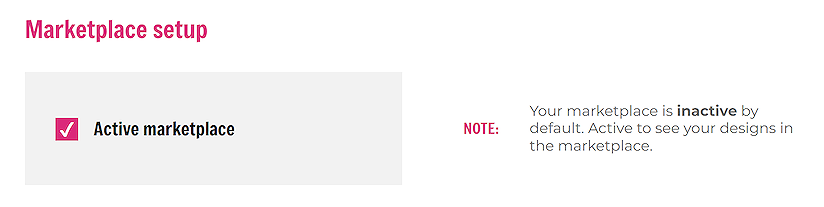
Activate your marketplace
One last step before you can start selling is to activate your marketplace store. The marketplace stores are set to inactive by default when they are created. Once you are happy with your content, click on the ‘Activate’ button at the top of the marketplace page.
Congratulations! You are now the proud owner of a marketplace store, share your link everywhere you can and HAPPY SELLING!!
View your marketplace sales
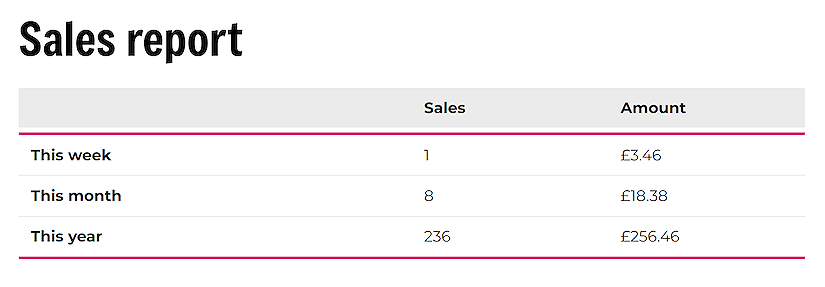
Once you have set up your marketplace, you can keep track of your sales.
Click on Account at the top of any page. Then select Marketplace in the left-hand menu. Finally click on the Marketplace sales sub-menu link.
Here you can view the marketplace sales you have made of the last week, month and year, also the total amounts.
Once you have viewed your sales, you might want to withdraw your commission for those sales.
Withdrawing your commission
Once you have made some marketplace sales, you will probably want to withdraw your commission for those sales. Click on Account at the top of any page. Then select Withdraw commission in the left-hand menu.
Your available balance is displayed at the top of the screen. Enter in the amount you would like to withdraw and click ‘Request withdrawal’. This request will be reviewed and processed by our accounts team at the latest, the following working day and the funds will be transferred to your account.
Important notes about withdrawing commission
The transfer of funds is not instant. It is a request for a withdrawal. Once the request has been made it will be reviewed by our accounts team and all relevant checks will be made.
Once the transfer has been approved the funds will be deposited into a PayPal account with the same email address as your sellshirts account. If this will cause an issue to you, contact us in the first instance.
Once the withdrawal has been requested the sum will be deducted from your available balance. Once the commission has been paid you will be able to see the amount paid in your list of transactions.
Viewing your marketplace transactions
Once you have made some marketplace sales, you can view the details of the transactions on your account. Click on Account at the top of any page. Then select Transactions in the left-hand menu.
On this page you can view the details of all the transactions on your account. For marketplace orders you will see the amount for the sale of the item, this is the full amount for the sale. There will also be a minus figure for the cost of production and dispatch of the item from sellshirts. The resulting number will be the commission amount made available to you in your account.
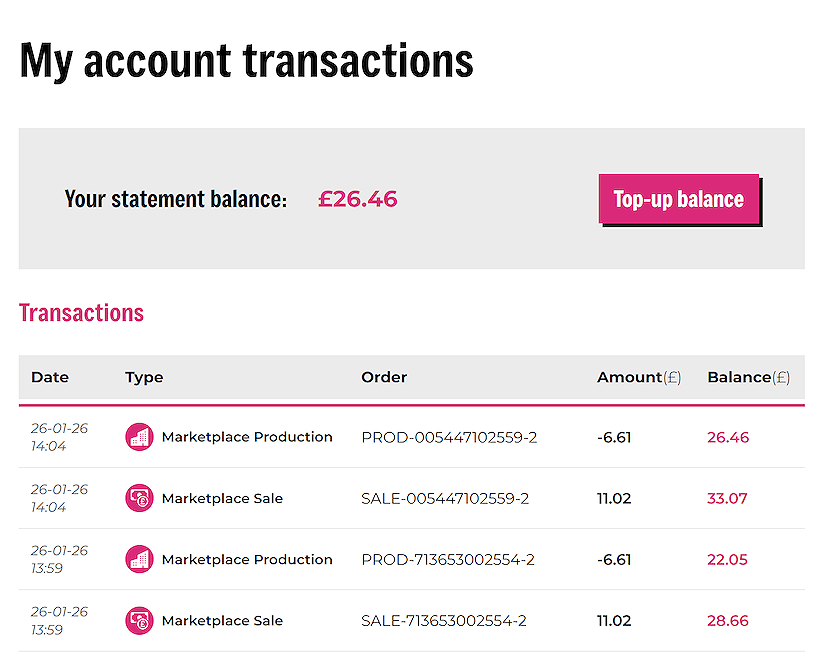
Don’t forget, at any point you can adjust the retail price of the items which will increase / decrease the commission earnt. The base production cost remains the same.
Troubleshooting
Q: Why are my designs not showing in the marketplace?
A: When you create your marketplace it is set to inactive by default.
This allows you time to set up your store front and organise your designs before going live. You can preview your store at any time during the setup by clicking the preview in the account area. Once you are happy with your marketplace navigate to the marketplace page in your account area, then click on the ‘Activate’ button.
