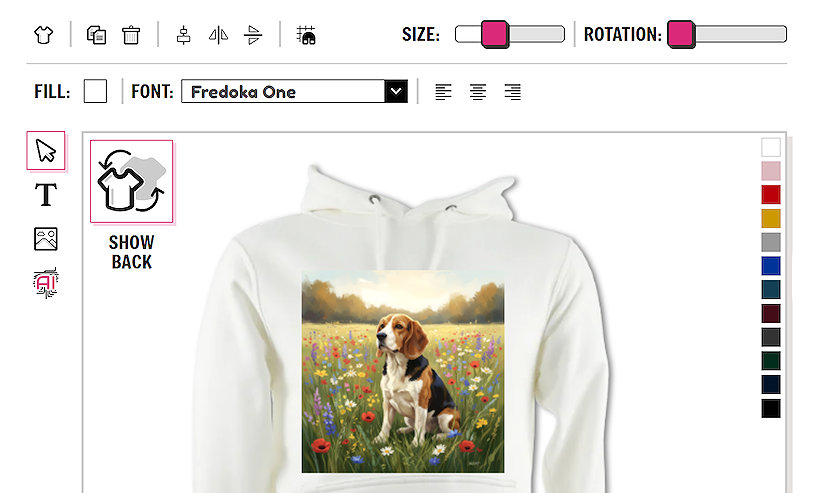
Creating your first design
Quick guide to getting you started
Create an account
The first stage to get started is to create a sellshirts account. You can view the prices and play with the designer. However once you are at the stage where you want to save your designs you will need to sign up for a free account.
The Account link is at the top of each page of the site or you can follow this sign up link.
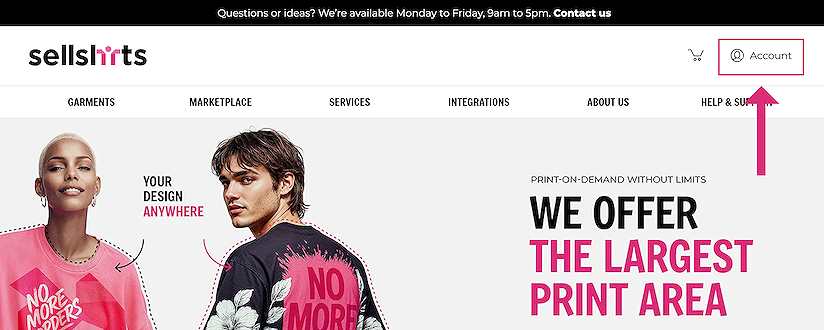
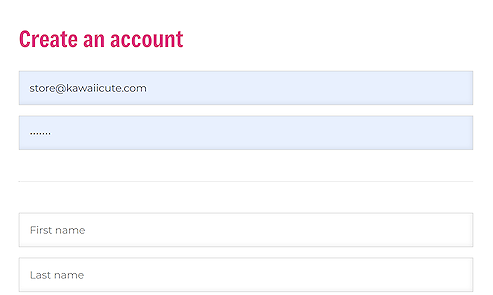
Add your email address - this needs to be the email address you use for your brand. Then create a password for your sellshirts account. Click continue, and your account will be created.
Go to your email account, you should have an email from us asking you to verify your email address. Click on the link in the email to verify your email address. You will return to the site where you are now ready to log in.
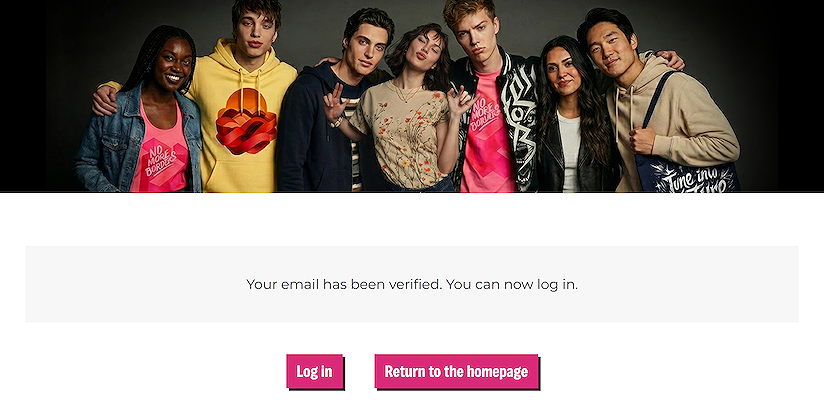
Click on ‘Log in’ to access your new account, you are ready to start adding your designs.
Adding your designs
Now your sellshirts account has been set up you can start creating your designs.
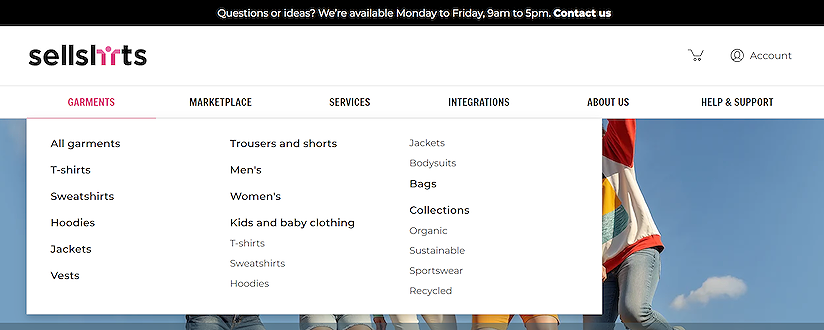
From the garment dropdown or on the Garments page. Select the garment which you would like to design on.
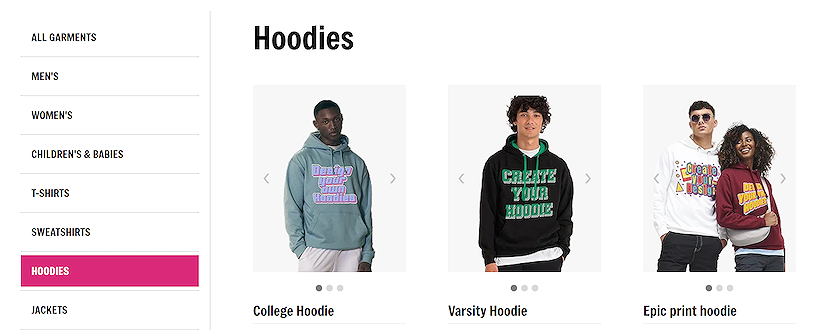
Once you find the garment you want, click on the garment to load our designer.
Adding an image
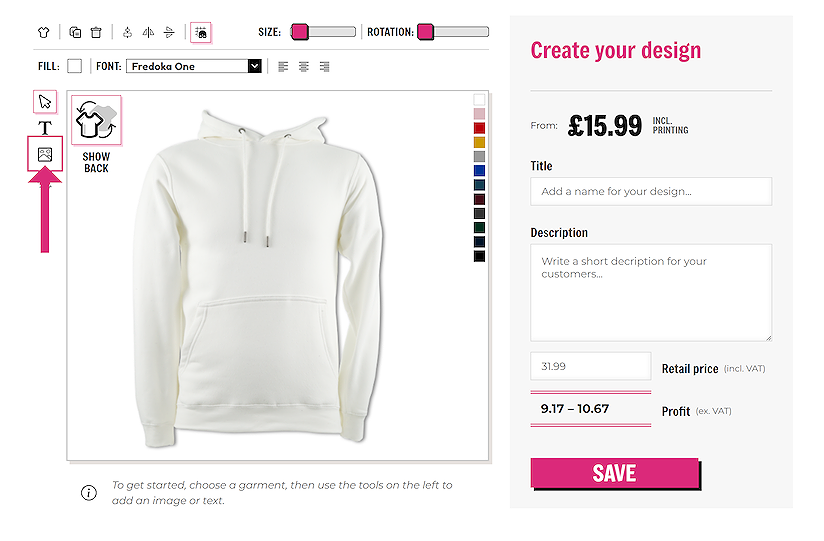
To add an image, click on the image symbol at the left-hand side of the designer. Then select the image from your computer which you would like to upload.
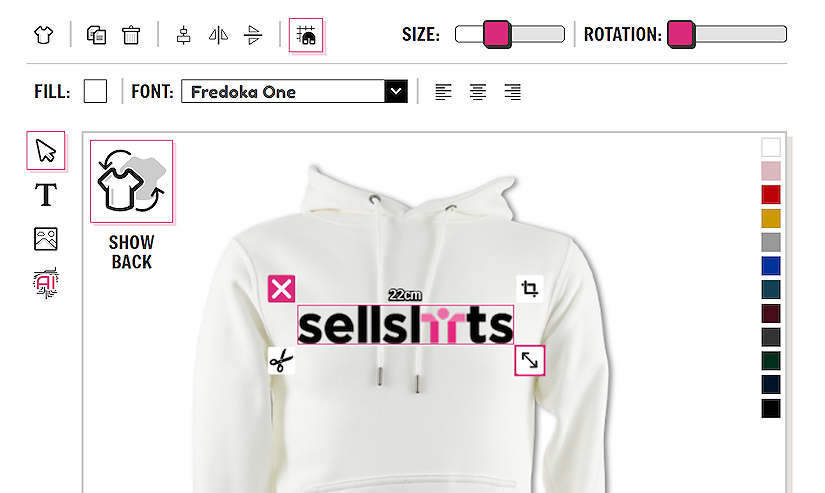
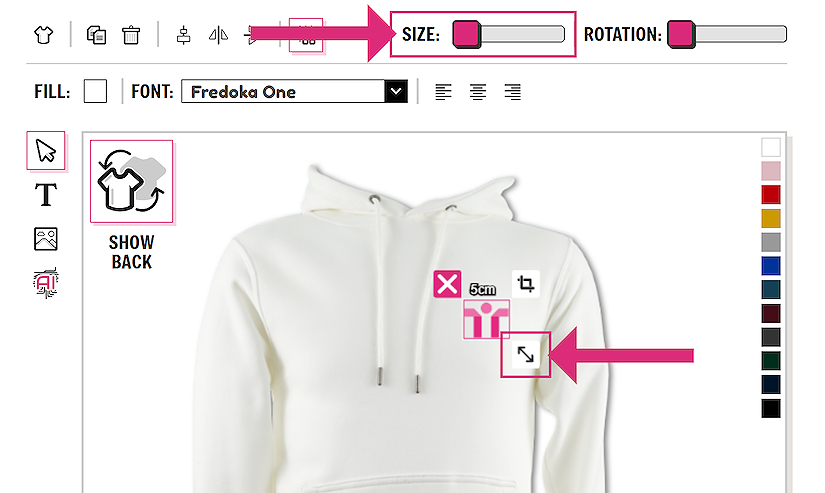
You can adjust the image size on the t-shirt by using the handles around the image. Notice the CM size at the top of the image, which shows the size of the print.
Creating your product
Once you are happy with your design and you are ready to save it to your account, you will need to think about the price which you want to sell it for.
The price displayed at the top of the product is the price that the garment is for you, you are free to list the garment for any price additional to this and the profit is calculated once you enter your resale price.
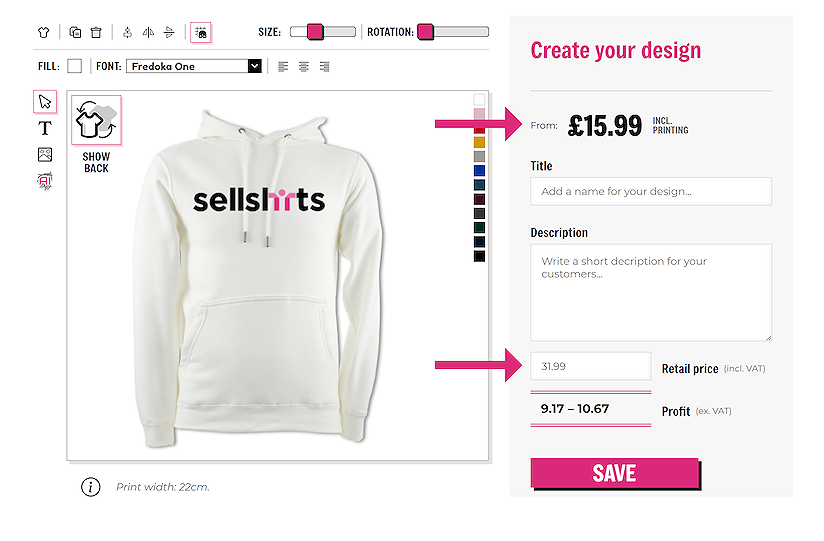
In this example, each time you sold one of these hoodies for £31.99, you would make a profit of between £9.17 and £10.67. The variance in profit is due to the size of garment the customer purchases, with the raw materials of the largest garments being more. Once the sale has been made this balance would be then available for you instantly in your account area for you to withdraw when you wish to.
Now that you have set the retail price of your design, you will need to add some product details. These details are optional, however these are the details that your customers will see, so it is better to be clear and detailed, so your customers understand what they are buying.
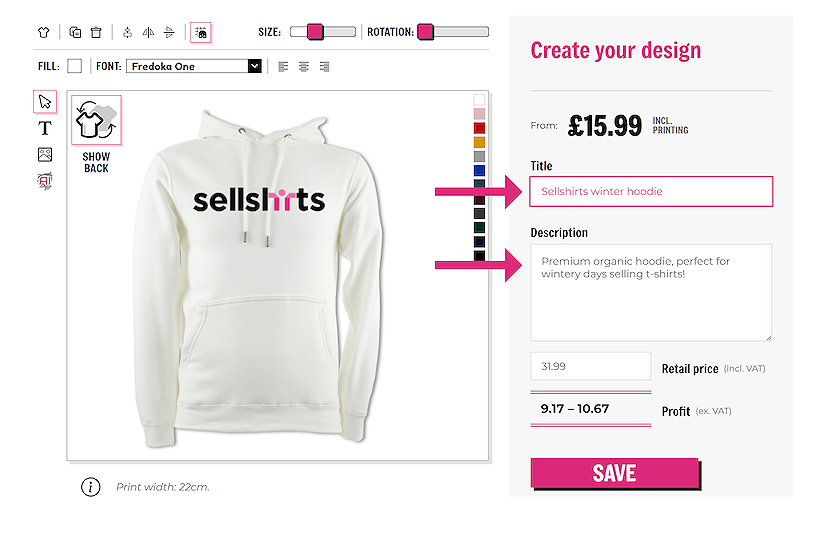
The product title will appear in the marketplace listing, along with a preview of the design. The description of your item will appear on the listing page of your item. Both should be clear and concise to help your customers click on the ADD TO BASKET button.
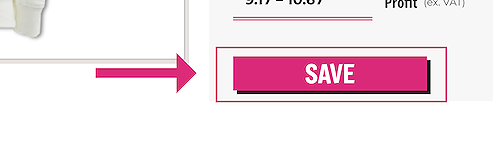
Once you are happy with your design, your resale price and your descriptions click the ‘SAVE’ button to add this design to your account. Don’t worry if it is not perfect, once saved, you will be able to edit your designs from your account area.
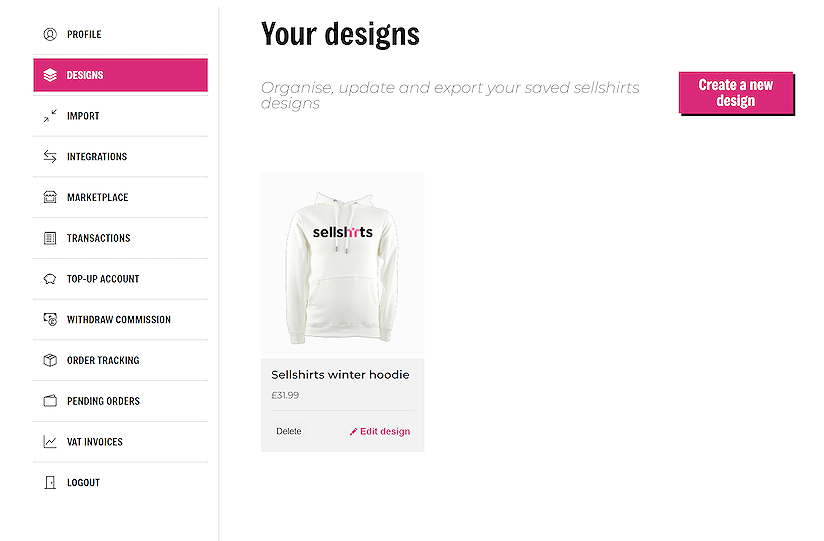
Now your design has been created you can view it in the account area. Click on Account at the top of any page, Then select Designs in the left-hand menu.
Congratulations!! You have created your first product!!
Advanced techniques
Change the colour of your garment
Once you have selected the garment in which you would like to add your design. Click on the garment which loads it into the designer. The garment which is displayed is the default colour, which you may want to change.
All the available colours for that particular garment are displayed on the right-hand side of the garment. Click the colour you would like to load that garment.
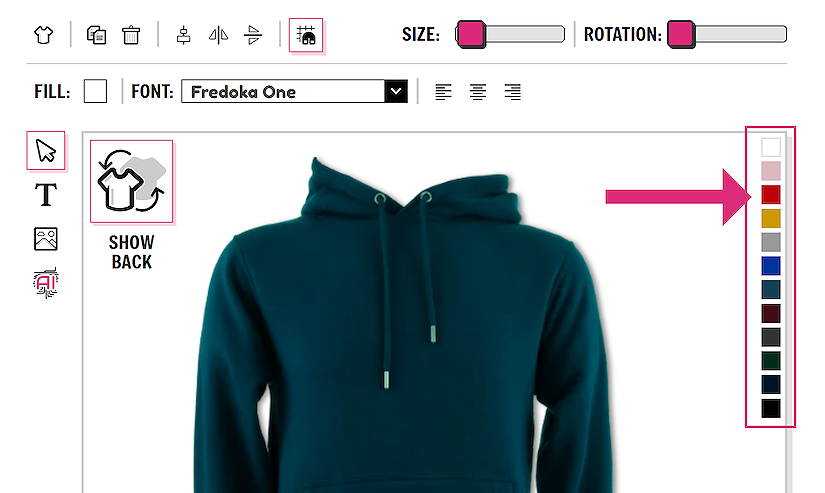
Some garments have considerably larger ranges of colours than other garments. If you can’t find the colour that you want it may be worth selecting another garment with a larger colour range.
NOTE: We have attempted to match the garment colours as closely as possible to the original colour, however all screens and monitors display colours in a slightly different way. Therefore it is impossible to get an absolute colour match. Please order a sample if an exact colour is required.
Image cropping
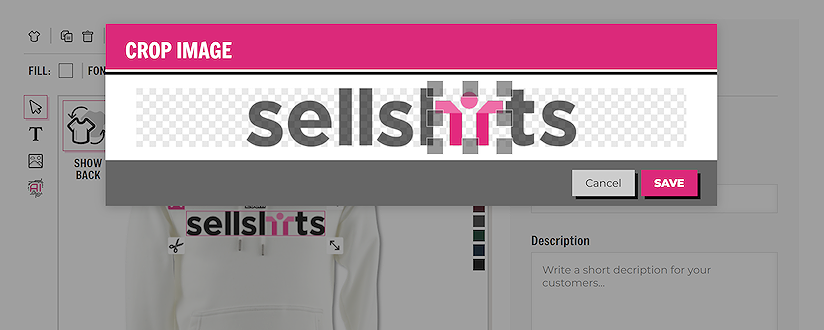
If you need to crop your image, click on the image to reveal to tools. Click on the crop tool on the top right of the image.
Resizing an image
Images can be resized in two ways. Click on your image to select it, the image options will appear. You can either re-size the image by dragging the scale handle on the image. Or you can use the ‘SIZE’ slider at the top of the designer to re-size your image.
Add a design to the back of the garment
If you wish to design on the back of the garment you can easily toggle between the front and the back view using the SHOW FRONT / SHOW BACK button. There is no need to save the garment in between designing on the front and back. All information is saved.
NOTE: Added a design to the back of the garment will increase the total cost of the garment. The price you see for the garment is the price + a one-sided design. For two sides there is a slight extra charge, which you will be alerted to. The increased price will be displayed before you save the design.
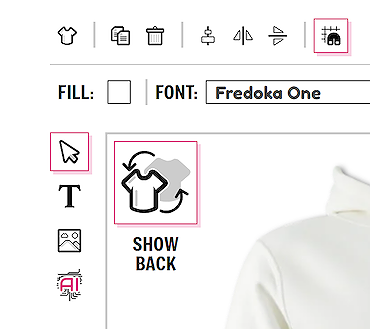
You alternatively can have a single design on the back of the garment for no extra cost.
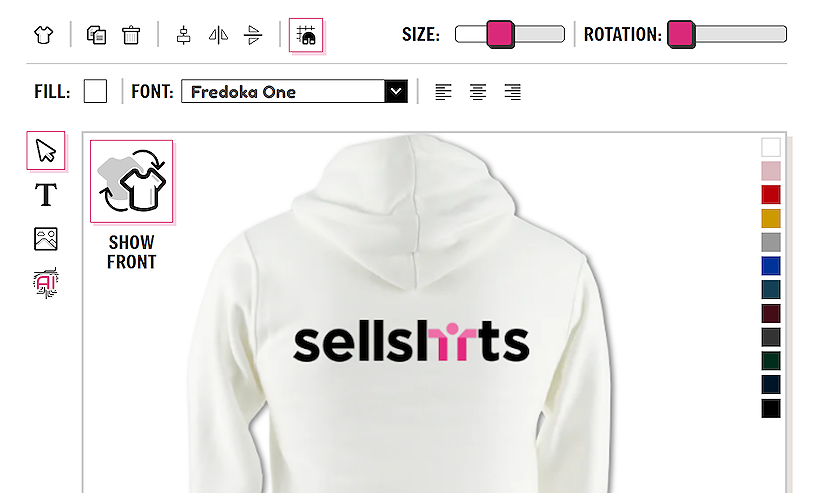
Removing the background of an image
Sometimes we have the perfect image for our design, however it has a background colour. As the one below, we don’t want it to print like this as the white background will print around the logo, giving the impression of a piece of paper stuck onto the garment, not a great look.
Here we need to remove the background!
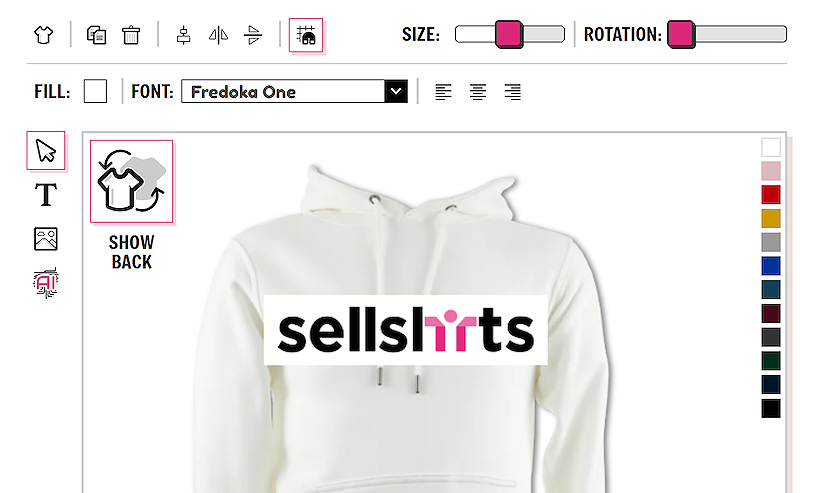
Click on the image to reveal the image options. On the bottom left you will see our AI background removal tool - the scissors icon.
Click on this and our AI will work out the edges of the design and remove the background. Once the background has been removed, you can revert back to the original image by clicking the undo button.
NOTE: As the background remove tool uses AI, it can only “guess” what the background is, overall it does a very good job, however on occasions it may not remove the items you were expecting. Please check you are happy with the outcome of the tool before proceeding.
Adding text
You can add text to your designs using our designer. This is a great way to customise your artwork to create unique designs for your customers. Using our text tool you will get smooth, crisp text in your designs and we have plenty of options to match the style of your design.
To add text click on the text button or T at the left-hand side of the designer.
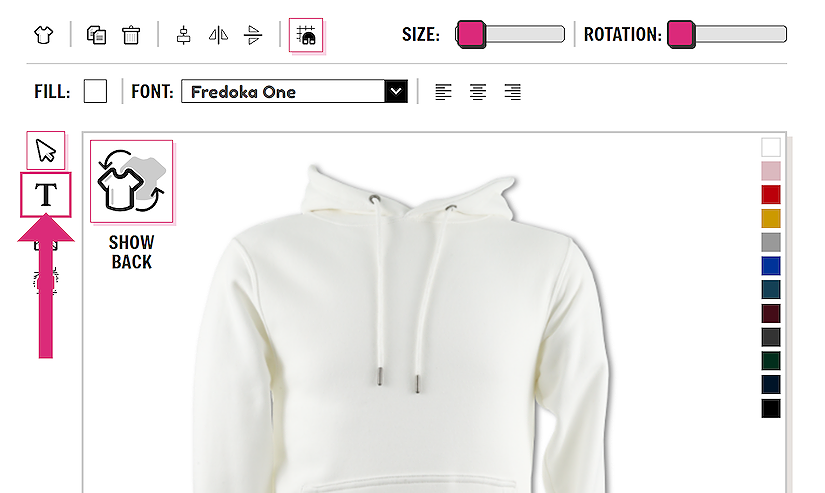
A new text element will be added to your garment. Click on the text to see the text options.
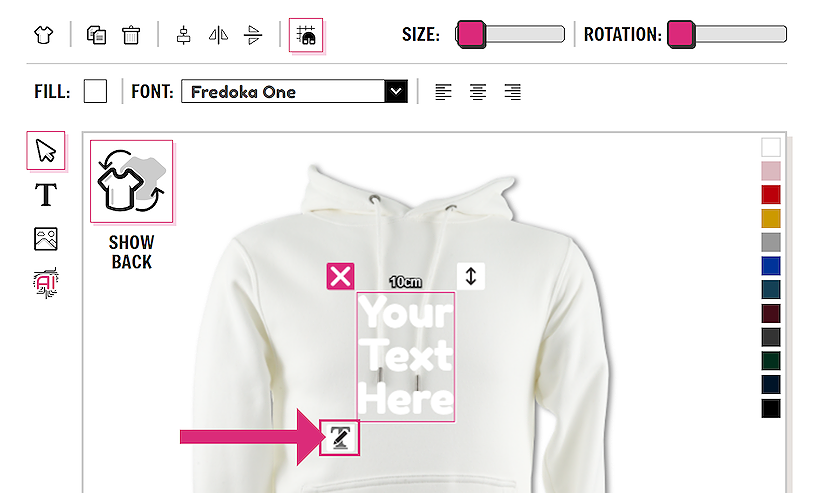
Add the text that you would like to the text box. Click ‘OK’ to add it to your garment.
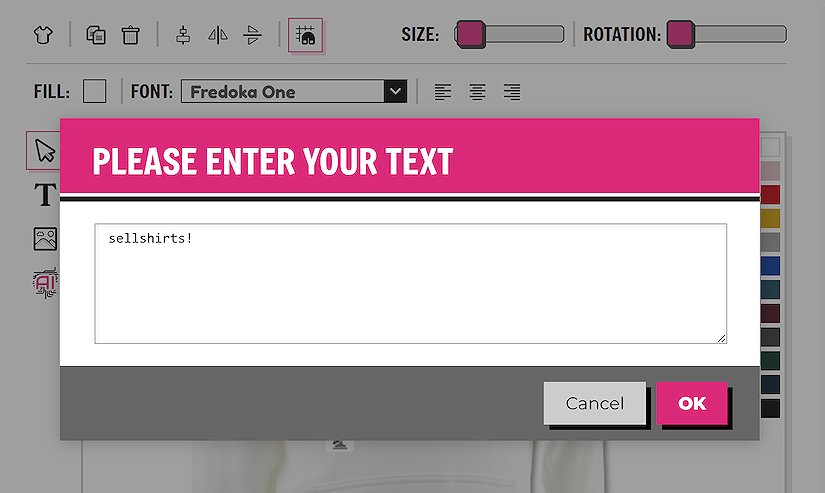
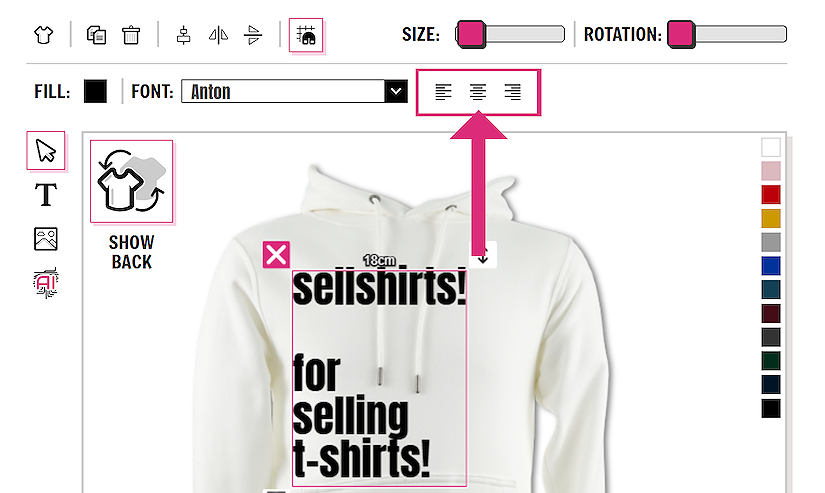
NOTE: If you have lots of text, think about adding them as separate text elements, then you will be able to style each element separately and therefore have more control of the styling of the text.
Change text colour
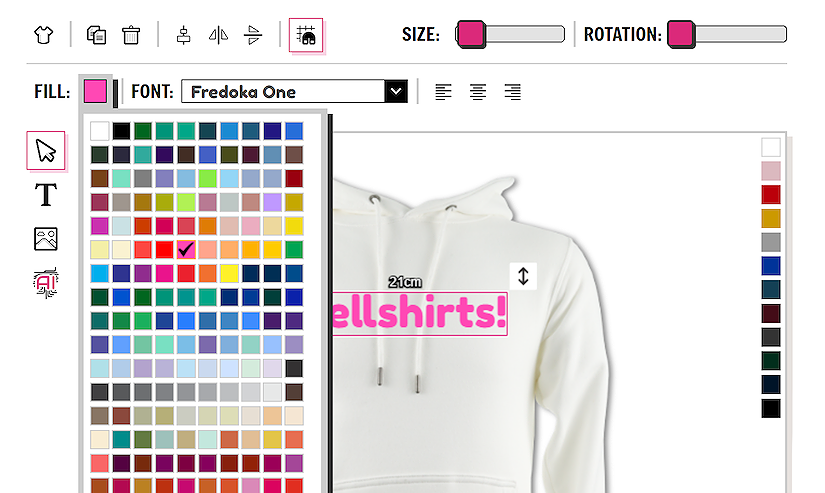
To change the colour of your text, click on the text to select it, then click on the ‘FILL’ button, then you can select a colour for your text.
Selecting a different font
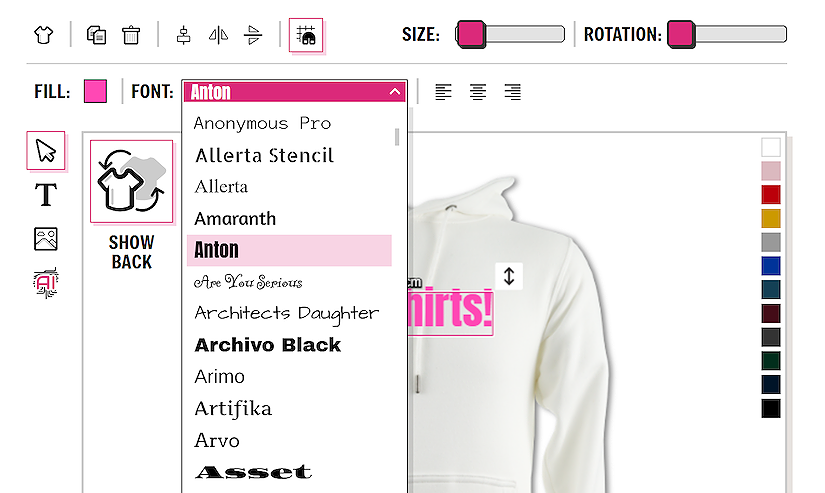
The font of your text can be easily changed by clicking on your text to select it. Then click on the ‘FONT’ dropdown. You will find a list of many fonts to fit with your theme.
Aligning text
The default alignment for the text is center, this can be useful for centrally aligning all your items on the garment. However if you have a different text layout in mind, you can change the text alignment to left, right or center.
Rotate images or text
You can rotate any element on the page if you wish. Click on the item, then use the ‘ROTATION’ slider at the top of the design.
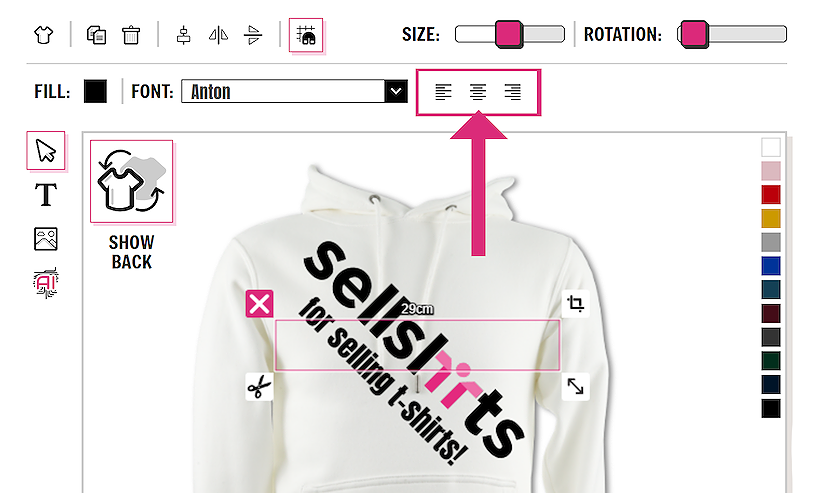
NOTE: The rotation slider works by rotating the element by fixed degrees and not an exact amount. We feel that this method is more user friendly and allows you to easily line up rotated items, as in the example above.
Align images and text
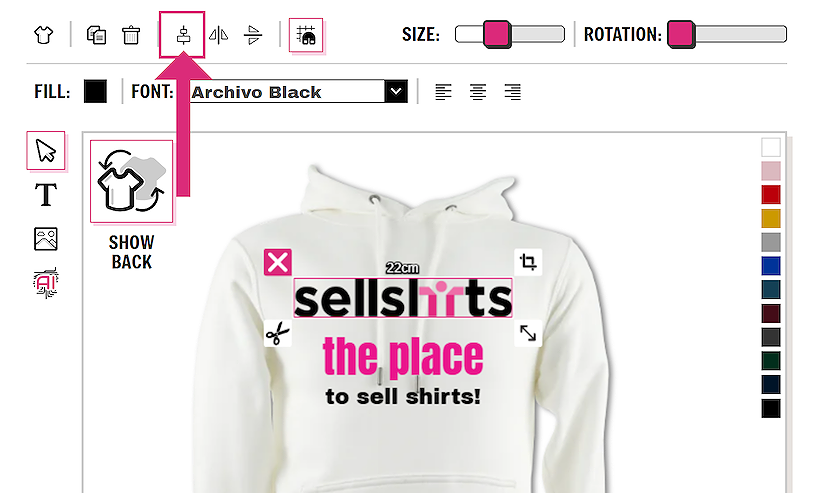
Images and text can be easily aligned on the garment. This is useful for centering items inline when you have multiple elements on the garment. Click on each element on the design and then click on the align to center button on the top of the designer. This allows all items to be aligned to the center and make the whole layout of the design look neater.
Positioning items on the garment
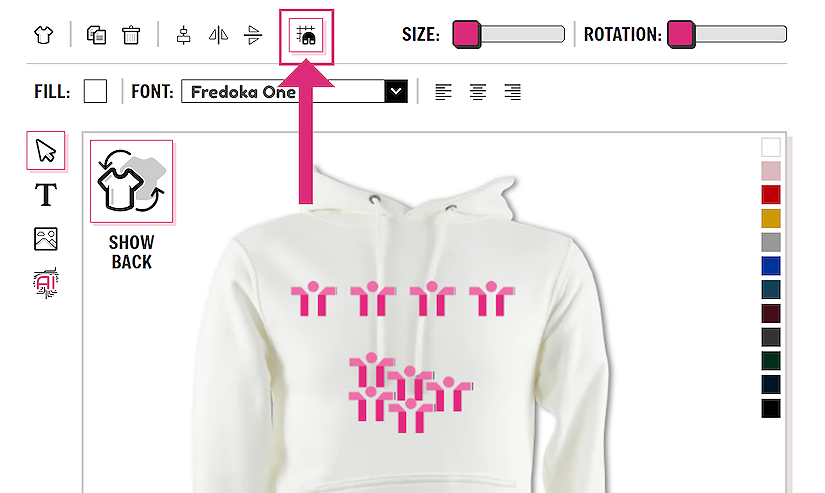
You can position your design elements anywhere you like on the garment, the choice is yours. We have no fixed areas or boundary lines, so the choice is yours in how you design your garments.
When positioning your items freely, by default the ‘Snap to Grid’ function is on. This can be very useful when lining up individual items. If you require more freedom, click the button to disable the function and you will have complete control over the positioning of your items.
Flipping and mirroring objects
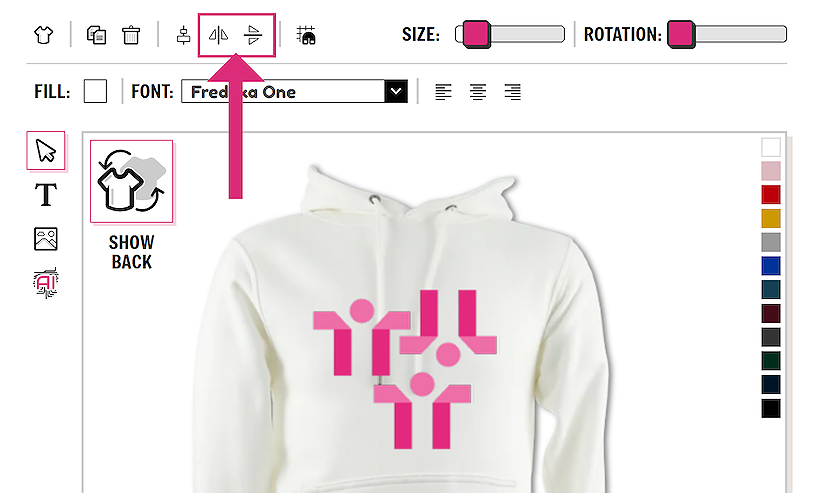
Sometimes in your design you may want to flip or mirror your design elements, this can be done using the tools at the top of the designer. They can flip an image or text either horizontally or vertically.
You can experiment with your design by using these tools.
Copying elements on your design
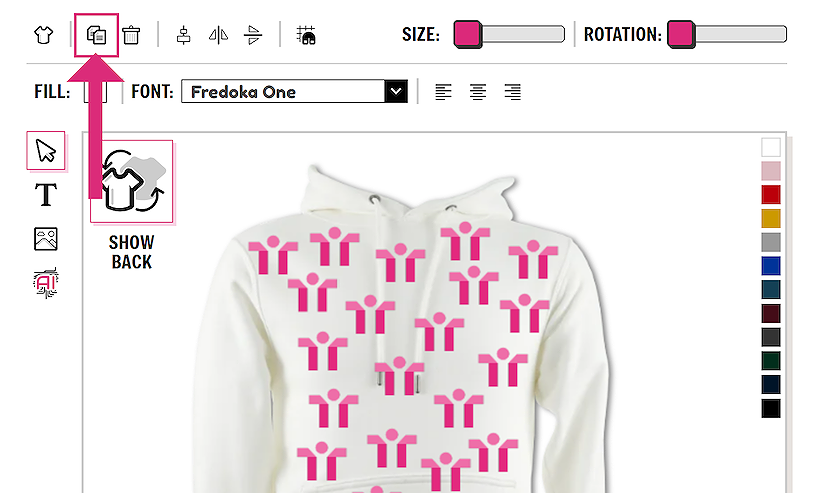
Using the ‘DUPLICATE’ button is a real time saver if you are creating with repeating elements. Instead of uploading the same image or typing out the same text, simply select the element and click the ‘DUPLICATE’ button. A duplicate of the item will appear on the garment.
Deleting unwanted elements
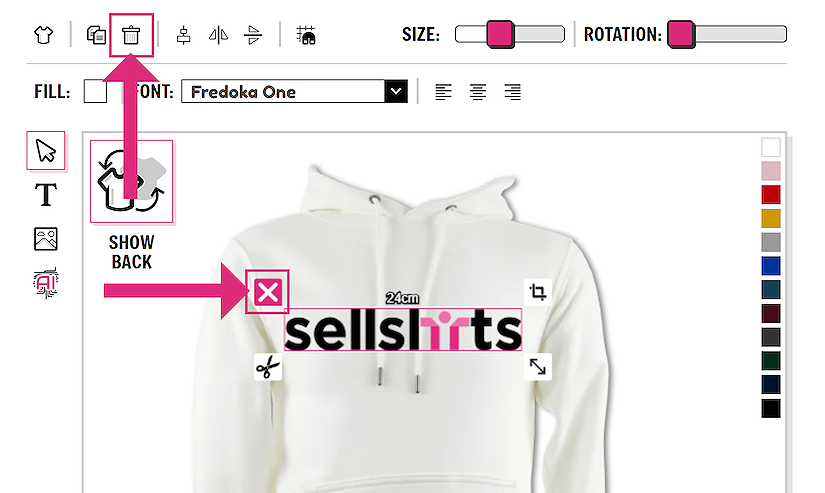
You can delete any element from your garment in two ways. First you can click on the item you want to delete, then click on the bin symbol at the top of the designer.
The second, and probably the most obvious method is once you have clicked on the item, the handles and options appear for this element. To delete, click on the pink cross on the top-left of the handles.
NOTE: Once an item has been deleted it can’t be undone. To avoid wasting your time double-check that you are selecting the right item before clicking delete.
Using our AI to create graphics
Our AI tool is an incredibly powerful and easy to use tool for creating t-shirt designs. If you don’t have any graphics, just a good idea, you can use our AI tool to create what you would like.
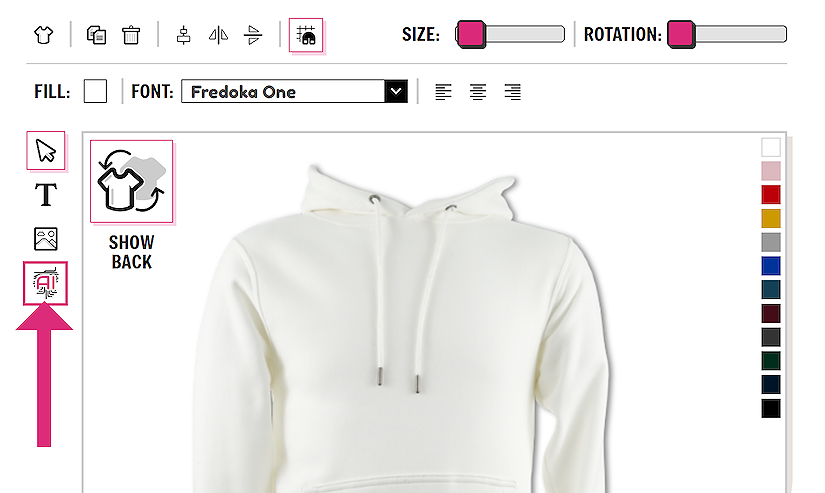
Click on our AI tool on the left-hand side of the designer to open the control panel.
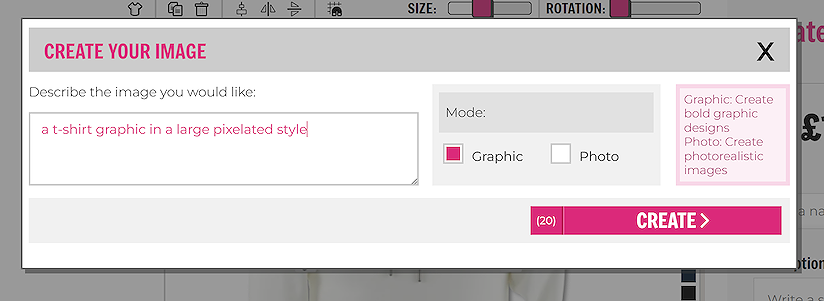
In the text box describe the graphic you would like to create, this can be as simple or complex as you like, from words like ‘cat’ or ‘dog’ to something more detailed. If you have something quite specific in mind, try to be more descriptive in your prompt.
The graphic option is set by default, this creates bold, colourful designs suitable for t-shirt printing. Once you are happy with your prompt, click ‘CREATE’.
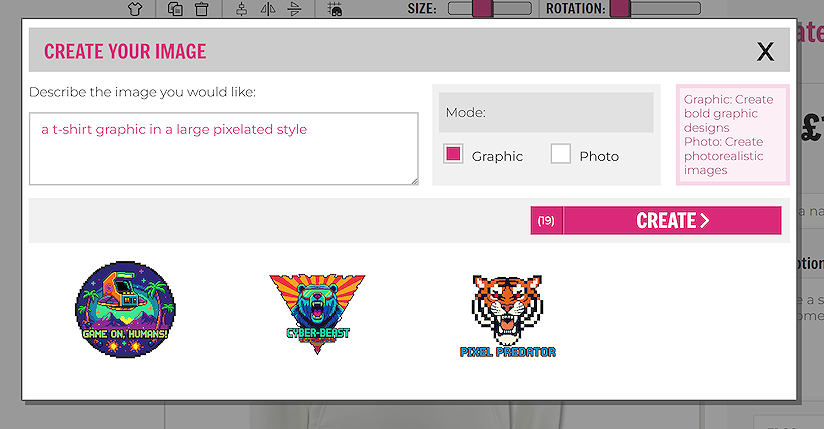
Click on the design you want to add it to your garment.
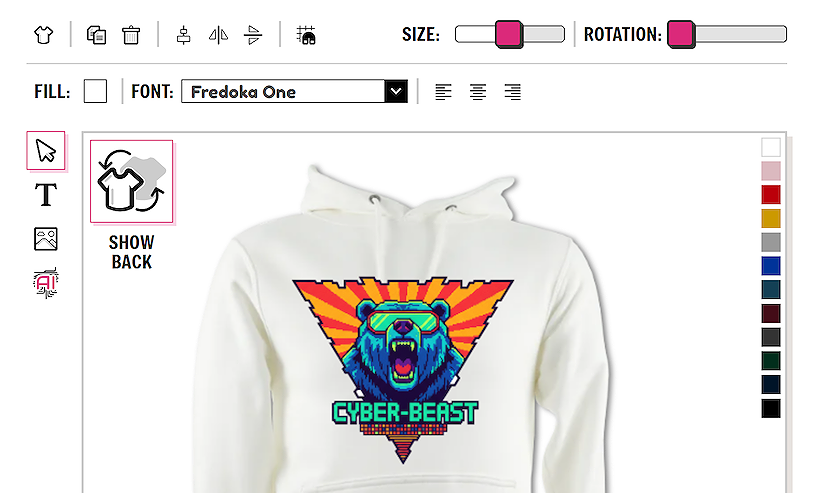
Using our AI to create photorealistic images
You can also use our AI designer to create photos for your designs. Click on our AI tool on the left-hand side of the designer to open the control panel.
When creating your prompt, remember to select the ‘photo’ option in the control panel
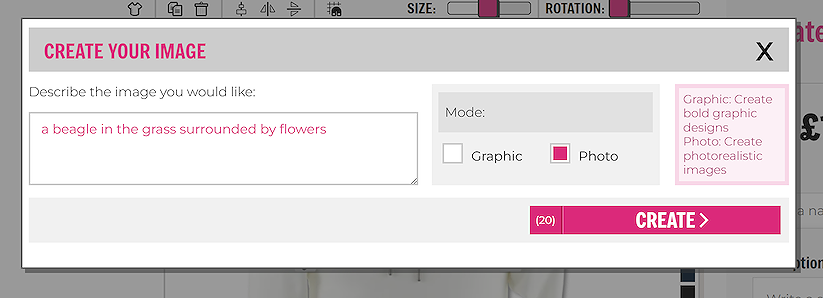
Click ‘CREATE’ to see your results.